Your trade server is the backbone of your brokerage. Every order your clients place, every price feed they see, and every position that gets executed flows through it. If it’s misconfigured or slow, your clients feel it through slippage, rejected orders, and downtime.
This guide covers what a trade server is, why it matters, how to set one up on MetaTrader 4 (MT4) or MetaTrader 5 (MT5), and how to add your broker server so traders can connect. Whether you’re launching your first brokerage or switching providers, this is what you need to know before you go live.
Before diving into setup, it’s important to understand how the server functions within your brokerage infrastructure.
Why Do Brokers Need a Trade Server?
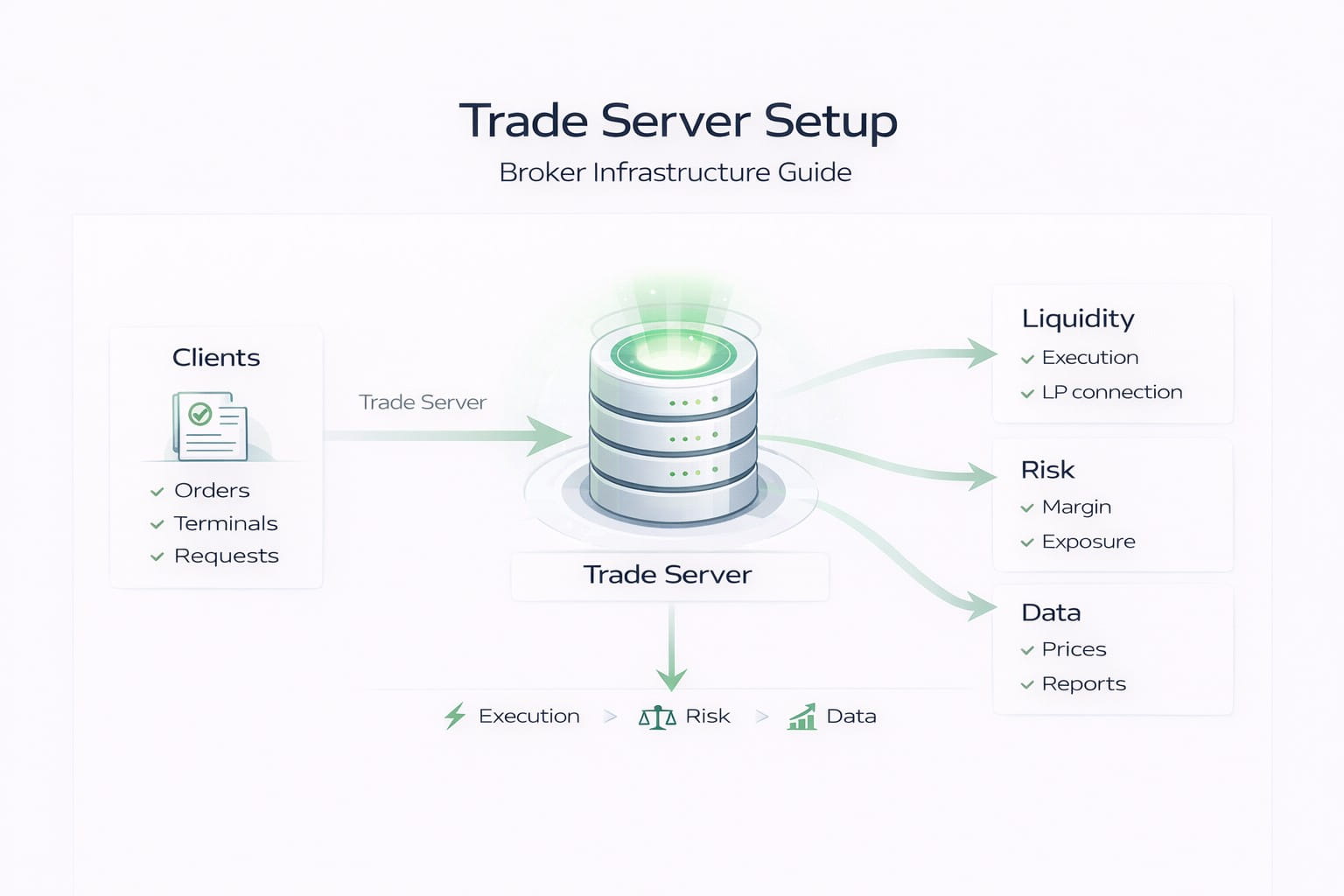
The trade server sits between your clients’ trading terminals and your liquidity providers, receiving orders, validating them, processing execution, and keeping records of everything that happens on your platform. Here’s what it does in practice:
| Function | What It Means for Your Brokerage |
| Order processing | Receives and validates every buy/sell request from clients |
| Price feed management | Streams live market prices to client terminals |
| Execution routing | Routes trades to liquidity providers based on your execution model |
| Account management | Tracks balances, margins, positions, and trade history |
| Risk management | Enforces leverage limits, margin calls, and stop-outs |
| Reporting | Generates logs and statements for compliance and auditing |
The server also directly affects your competitiveness. Execution speed is important since clients notice the difference between a 30ms order response and a 300ms one. Server location, hardware specs, and network quality all feed into that number.
A trade server also gives you full control. Brokers running on white-label arrangements share server resources and have limited access to platform settings. A dedicated server means you control group settings, symbols, plugins, and execution logic directly, without routing requests through a third party.
How to Set Up a Trader Server on MT4/MT5
Step 1: Choose Your Platform (MT4 vs MT5)
To get started, you need to select your preferred trading platform. MT4 and MT5 are the most popular choices:
MetaTrader 4 (MT4): MT4 is for retail forex trading. It supports forex pairs, spot metals, and CFDs, and runs comfortably on modest hardware, making it a solid choice for brokers targeting retail forex clients who want a familiar, lightweight platform with a large ecosystem of EAs and indicators.
MetaTrader 5 (MT5): MT5 is the multi-asset upgrade. It supports forex, stocks, futures, options, and commodities on the same server, and handles significantly higher account volumes. It’s the right fit for brokers offering a broader instrument range, managing larger client books, or building infrastructure that scales.
If you’re evaluating which platform makes more sense for your brokerage in the long-term, the MT4 vs. MT5 comparison for brokers breaks down the architecture and business trade-offs in detail.
Step 2: Install and Configure the MT4/MT5 Server Components
A complete MetaTrader server deployment includes several components that need to be installed and configured in sequence:
- Trade Server: the core execution engine. Handles client orders, account management, and position tracking.
- Data Server: manages historical data and chart data delivery to clients.
- Manager API / Admin Terminal: the back-office interface where you configure trading groups, symbols, and server settings.
- Watchdog: a monitoring process that automatically restarts the server in case of an unexpected crash.
After installation, the initial configuration covers:
- Trading groups: define execution conditions, leverage, and spreads for different client segments (e.g., retail, VIP, demo)
- Symbols: add the instruments your clients can trade, with contract sizes, margin requirements, and commission structures
- Server time and trading sessions: configure market hours per instrument
- Security settings: set IP restrictions, SSL/TLS certificates, and admin access levels
Step 3: Connect a Liquidity Provider and Price Feed
A server needs two live data connections to be operational: a liquidity connection for order execution and a price feed for quotes.
Liquidity connection: This links your server to one or more liquidity providers. Client orders flow out to the liquidity providers and fill at market prices. The technical link between your server and the liquidity providers runs through a liquidity bridge (MT4) or a gateway (MT5).
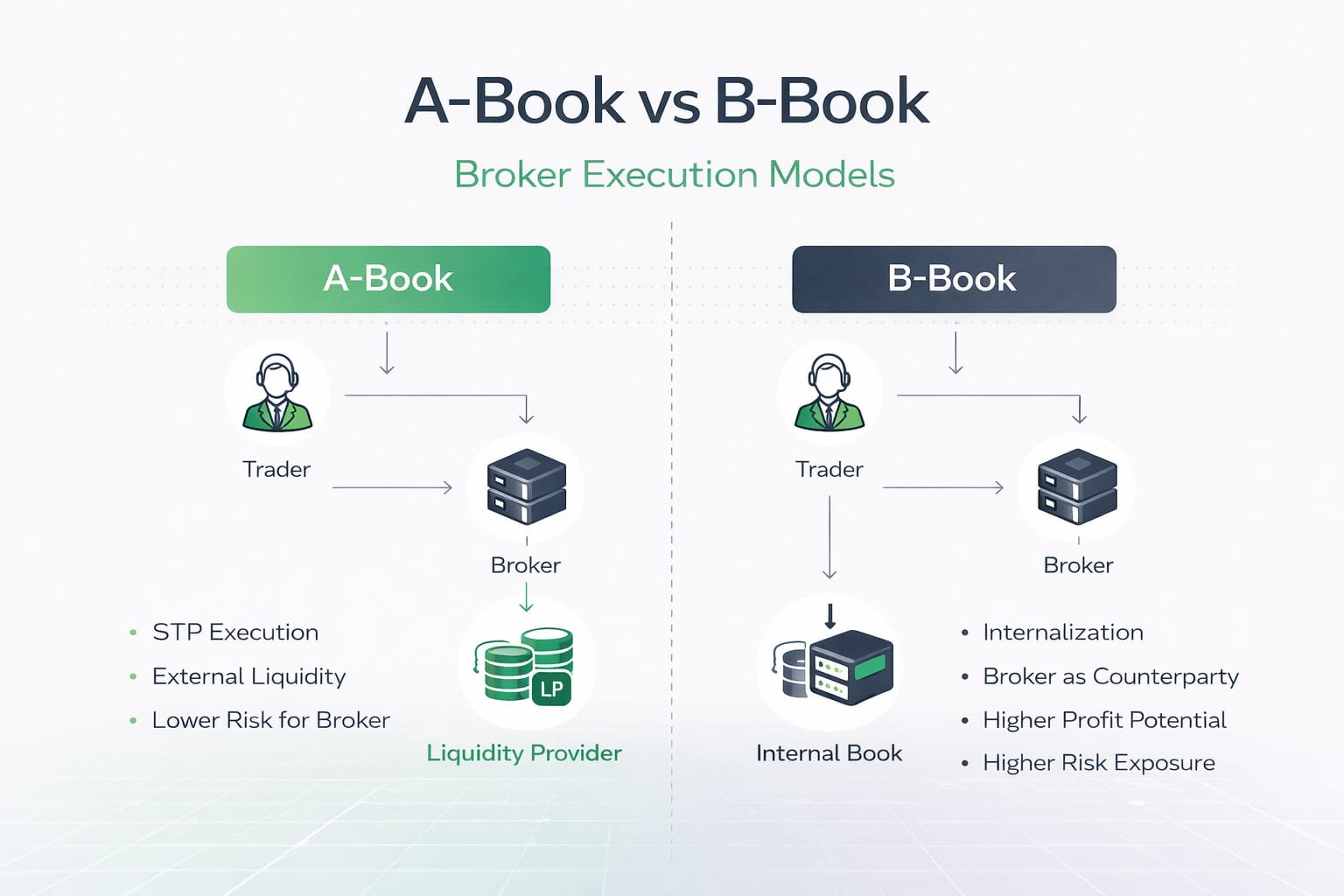
Brokeree’s MT4/MT5 Liquidity Bridge handles this connection and aggregates quotes and depth from multiple liquidity providers to improve price consistency. The bridge also lets you configure A-book, B-book, or hybrid execution per client group, giving you direct control over risk exposure.
Price feed: Your server needs a stable, real-time quote stream. This is separate from the execution feed. Brokeree’s MetaTrader Feed Server receives raw market data, filters spikes, and streams clean, consistent prices to the trading platform.
ALSO READ: Essential MT4 Plugins for Forex Brokers
Step 4: Install Risk Management and Operational Plugins
After basic configuration, add server-side plugins to protect your operations and clients. Core risk management plugins to consider:
- Dynamic Margin and Leverage: adjusts margin requirements per account and symbol, with support for ESMA-compliant leverage limits
- Negative Balance Protection: prevents client accounts from going below zero, a requirement in multiple regulated jurisdictions
- Exposure Manager: aggregates client-side exposure per symbol and hedges positions automatically to the liquidity provider when thresholds are hit
- Advanced Stopouts: configures stopout behavior with custom rules by group, instrument, or market condition
- Execution Report: logs trade execution data for compliance reporting and MiFID II disclosure requirements
Step 5: Test Before You Go Live
Don’t skip this step. Testing a trade server under simulated conditions is significantly cheaper than finding bugs during live trading.
Pre-launch checklist:
| Test | What to Check |
| Order execution | Market, pending, and limit orders fill correctly at expected prices |
| Latency | Round-trip order time is under 50ms to the LP (sub-10ms is achievable in co-located environments, while sub-50ms is generally acceptable) |
| Quote stability | No spikes or frozen quotes during simulated high-volume periods |
| Margin calculation | Correct margin held across different leverage groups and symbols |
| Failover | Backup server or feed activates correctly when the primary goes offline |
| Plugin behavior | Risk plugins trigger at correct thresholds without false positives |
How to Add Your Broker Server to MT4/MT5
When you receive your MetaTrader server license, MetaQuotes registers your server on its global server list. This is what allows traders to find your brokerage by name when they set up their terminal. Here’s how the process works from the trader’s side:
Step 1: Download and install MT4 or MT5. Traders can use the generic installer from MetaQuotes (metatrader4.com or metatrader5.com) or a branded installer from your brokerage’s website. Your branded installer comes pre-configured with your server addresses, making it much easier for clients.
Step 2: Open the platform. On first launch, MT4/MT5 will prompt a server selection screen or a login window.
Step 3: Find the broker server. In MT4, go to File > Open an Account or File > Login to Trade Account, then click the dropdown to find your broker’s server. In MT5, the process is similar: click the server field and type your broker name or server address.
Step 4: If your server doesn’t appear in the list, traders can add it manually. In MT4, go to Tools > Options > Server, enter the server address or IP, and then click Scan. In MT5: type the broker name or direct server address in the search field of the server dialog.
Step 5: Enter your account credentials (login number and password), then connect.
A few things make this process smoother for your clients:
- Provide a branded installer from your website, pre-loaded with your server address.
- Include your server address clearly in the welcome email you send to new accounts.
- Make sure your server name is registered correctly with MetaQuotes, so it appears in search results.
If you’re running multiple servers, like a live server and a demo server, each will have a different address. Your clients need to know which one to select based on their account type.
Conclusion
A trader server is the foundation where everything else sits: your execution quality, your risk controls, your client experience, and your ability to scale. Getting it right from the start saves significant time and money later.
With over a decade of specialized experience developing MetaTrader solutions, Brokeree Solutions covers MT4 and MT5 server installation and full configuration, including live, demo, and backup server setup. It’s worth the conversation if you’re launching and want to get things right the first time.
FAQs
-
What is a trader server in the context of MT4/MT5?
A trader server is the back-end software component that processes client orders, manages accounts, streams price data, and connects the trading platform to liquidity providers.
-
Can I still get a full MT4 server license in 2026?
No, MetaQuotes stopped issuing new MT4 licenses. In practice, new access generally comes through legacy arrangements with existing license holders.
-
Where should I host my trade server for the best execution speeds?
Co-locate your server in a data center close to your liquidity providers. Industry-standard hubs include LD4 in London, NY4/NY5 in New York, and TY3 in Tokyo.
-
What’s the difference between a liquidity bridge and a gateway on MT5?
A liquidity bridge connects to multiple liquidity providers simultaneously and supports execution model configuration (A-book/B-book/hybrid); a gateway is a native MT5 component designed for single-LP connectivity.
-
Do I need plugins on top of my trader server?
The base MT4/MT5 server covers core trading functions, but server-side plugins add precision for risk management, compliance reporting, execution control, and investment products like PAMM.